
🔍 TCP Ping Tool
Test TCP connectivity and measure response time to specific ports
Waiting for input...
Network Tools
TCP Ping Online – Check Port Status and Network Latency Accurately
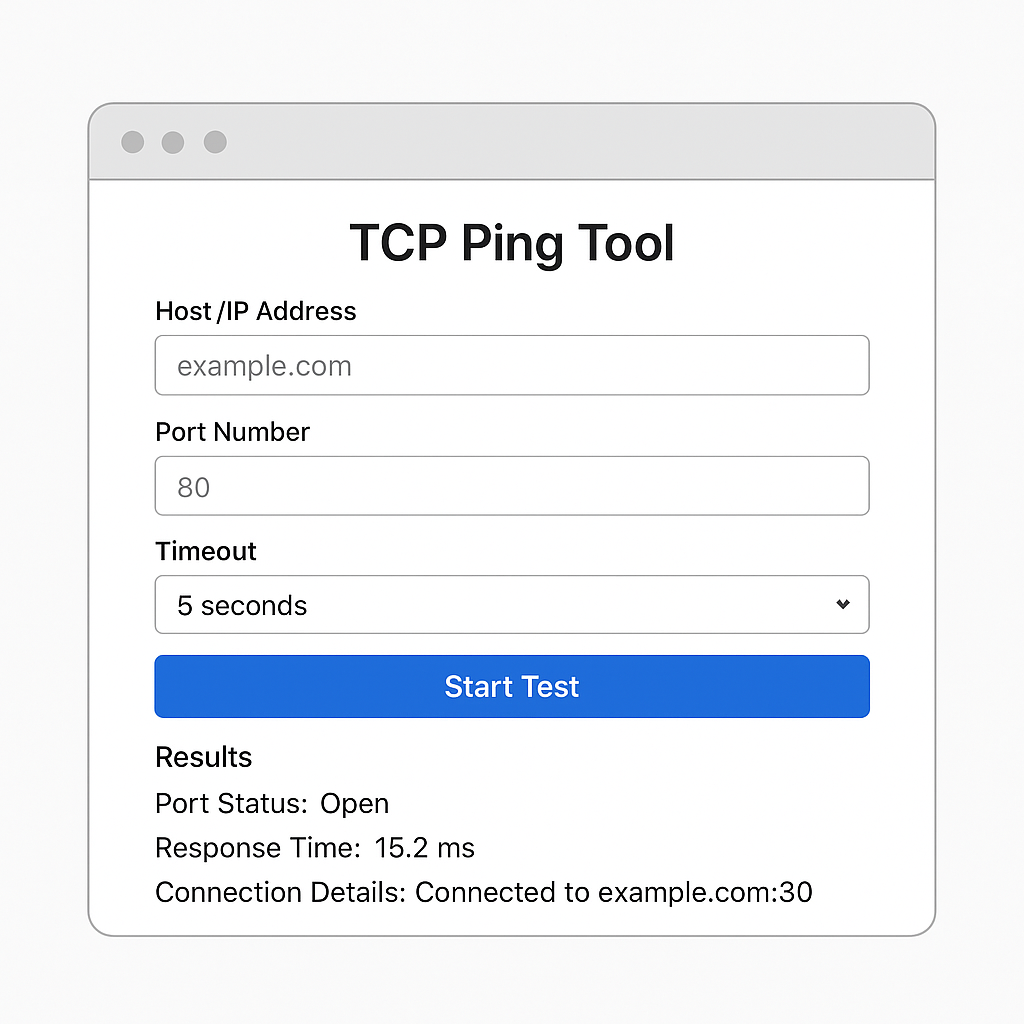
In the world of network administration and application development, checking connection status to specific ports is an essential daily task. TCP Ping Online is a powerful tool that helps you accomplish this quickly and accurately right from your web browser.
What is TCP Ping?
TCP Ping is a network connectivity testing method that uses TCP (Transmission Control Protocol) instead of the traditional ICMP protocol. Unlike regular ping commands that only check general connectivity to a server, TCP Ping Online allows you to ping a specific port to determine the exact operational status of services running on that port.
This tool is particularly useful when you need to check if a port is open on web servers, databases, email servers, or any other network services listening on specific ports. For general connectivity testing, you might also want to try our standard Ping tool which uses traditional ICMP packets.
When to Use TCP Ping Instead of Regular Ping?
1. Testing Specific Services
When you need to verify whether services like web servers (ports 80, 443), databases (ports 3306, 5432), or SSH (port 22) are operational, a TCP Ping Tool provides more accurate information than ICMP ping.
2. Firewall Blocks ICMP
Many firewalls and security systems are configured to block ICMP packets but still allow TCP connections to necessary ports. In such cases, knowing how to ping a specific port using TCP is the only solution.
3. Detailed Network Troubleshooting
TCP Ping helps you distinguish between general network connectivity issues and specific problems with services running on particular ports.
4. Load Balancer and Proxy Testing
When working with load balancing systems, you need to ping using a specific port to test each backend server individually.
How to Use TCP Ping Online Tool
Step 1: Access the Tool
Open your web browser and navigate to our TCP Ping Online tool.
Step 2: Enter Testing Information
- Host/IP Address: Enter the domain name or IP address of the server to test
- Port Number: Enter the specific port number (e.g., 80 for HTTP, 443 for HTTPS, 22 for SSH)
- Timeout: Select response timeout (typically 1-10 seconds)
Step 3: Execute the Test
Click the “TCP Ping” button to start the testing process. The tool will:
- Establish a TCP connection to the specified port
- Measure response time (latency)
- Display connection status (Success/Failed)
Step 4: Analyze Results
Results will show:
- Port Status: Open/Closed/Filtered
- Response Time: Response time in milliseconds
- Connection Details: Detailed information about the connection process
Practical Examples:
- Test web server:
example.com:80 - Test HTTPS:
google.com:443 - Test SSH server:
192.168.1.100:22 - Test database:
db.company.com:3306
Alternative: Using a Port Scanner Tool
If you prefer a more comprehensive approach to check if a port is open, consider using our Free Online Port Scanner. Unlike TCP Ping which tests one port at a time, a Port Scanner can simultaneously check multiple ports on a target host, making it ideal for security audits and comprehensive network assessments. The Port Scanner tool is particularly useful when you need to:
- Scan a range of ports (e.g., ports 1-1000)
- Identify all open services on a server
- Perform security assessments
- Get an overview of a server’s exposed services
Both tools complement each other: use TCP Ping for quick, targeted port testing, and use the Port Scanner for broader network discovery.
TCP Ping vs ICMP Ping Comparison
| Criteria | TCP Ping | ICMP Ping |
|---|---|---|
| Protocol Used | TCP (Transport Layer) | ICMP (Network Layer) |
| Test Specific Ports | ✅ Yes | ❌ No |
| Bypass Firewalls | ✅ Often passes through | ❌ Easily blocked |
| Service Testing | ✅ Accurate | ❌ Host-only testing |
| Execution Speed | 🔶 Slower | ✅ Fast |
| Detailed Information | ✅ Rich | 🔶 Basic |
| Windows Support | 🔶 Requires 3rd party tools | ✅ Built-in |
| Bandwidth Usage | 🔶 Higher | ✅ Lower |
| Troubleshooting | ✅ Detailed, specific | 🔶 General |
Frequently Asked Questions (FAQ)
1. Is TCP Ping free to use?
Yes, our TCP Ping Online tool is completely free and requires no account registration.
2. Can I test multiple ports simultaneously?
Currently, the tool supports sequential testing of individual ports. To test multiple ports, you need to perform separate tests for each. However, if you need to scan multiple ports at once, our Port Scanner tool would be more suitable for that purpose.
3. Why does TCP Ping show “Port Closed” but the service is still working?
This could be due to:
- Firewall blocking connections from your IP address
- Service only listening on localhost (127.0.0.1)
- Incorrect port binding configuration
- Service in maintenance mode
4. What’s the difference between “Port Closed” and “Port Filtered”?
- Port Closed: Server responds but no service is listening on the port
- Port Filtered: No response received, possibly due to firewall blocking or network instability
5. Can TCP Ping completely replace regular ping?
Not entirely. TCP Ping is excellent for testing specific services, but ICMP ping remains useful for general network connectivity testing and basic response time measurement. You can use our traditional Ping tool for general connectivity tests.
6. Are there usage limits?
We apply reasonable rate limiting to ensure service quality for all users, but it’s sufficient for normal usage needs.
7. Does the tool store my testing information?
No, we do not store any information about the hosts or ports you test to ensure privacy.
TCP Ping Online is an indispensable tool in every network administrator’s, developer’s, and IT professional’s toolkit. With its ability to check if a port is open accurately and quickly, this TCP Ping Tool will help you save time and improve efficiency in network troubleshooting and monitoring the status of critical services.
Try our TCP Ping Tool now to discover the powerful and convenient features it offers!